TaskbarInfo user guide
TaskbarInfo watches over your PC from the taskbar and helps you understand — and often fix — what is wrong: a camera that is "already in use", a stuck printer, a slow startup, a full disk, an Internet connection that keeps dropping.
1. Getting started
Run the installer downloaded from this site. No administrator rights are needed: TaskbarInfo installs for your account and starts with Windows. Its icon appears in the notification area, on the right of the taskbar.
If it is hidden behind the "^" arrow, TaskbarInfo tries to pin it so that it stays visible. You can also do it in Settings (see below), or choose to show TaskbarInfo as a taskbar button.
2. The icon and its tooltip
The icon shows three bars: processor, memory and disk activity. Their color follows the load: green, then orange, then red beyond the thresholds you choose.
Hover over the icon for the tooltip: percentages, used and free memory, graphics card, free space on each disk, network throughput. A double-click opens Task Manager.
3. The panel and widgets
A left click on the icon opens the panel: charts for the last 1 or 5 minutes, power, temperature, disks, network and devices. The pin keeps it open wherever you like.
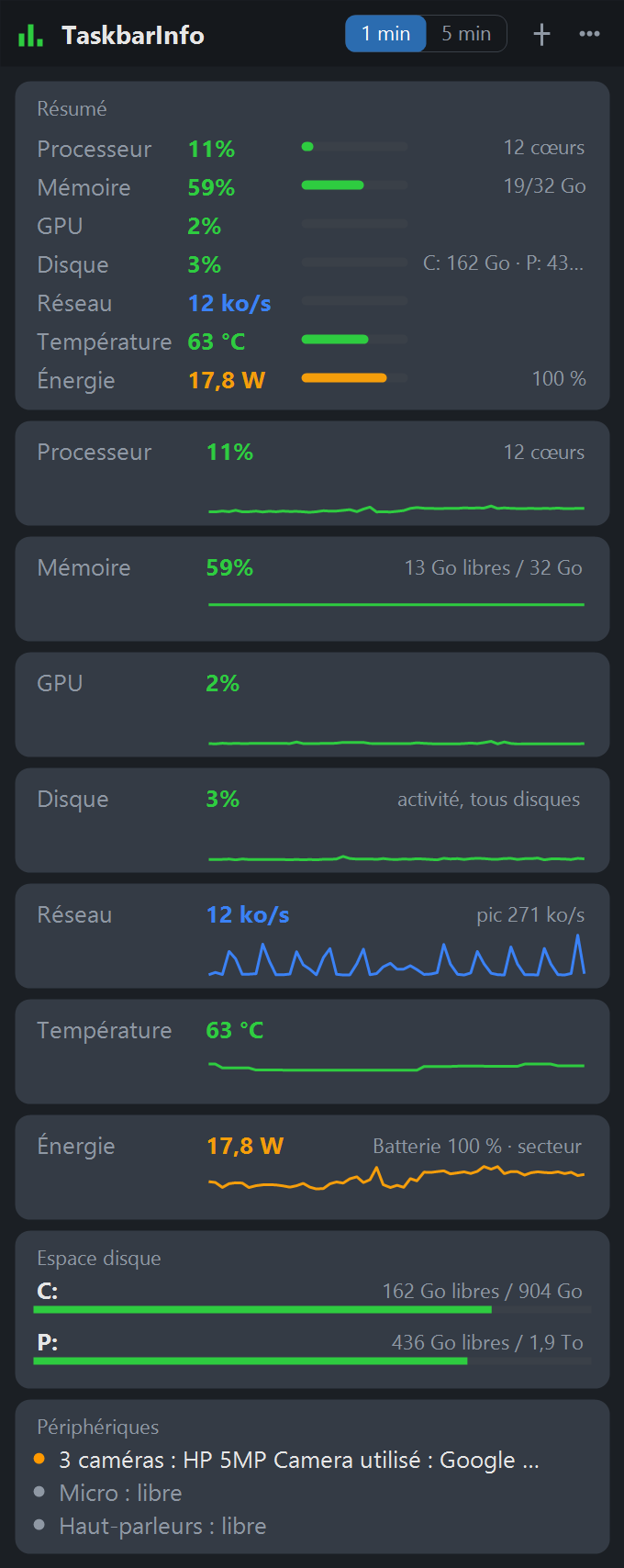
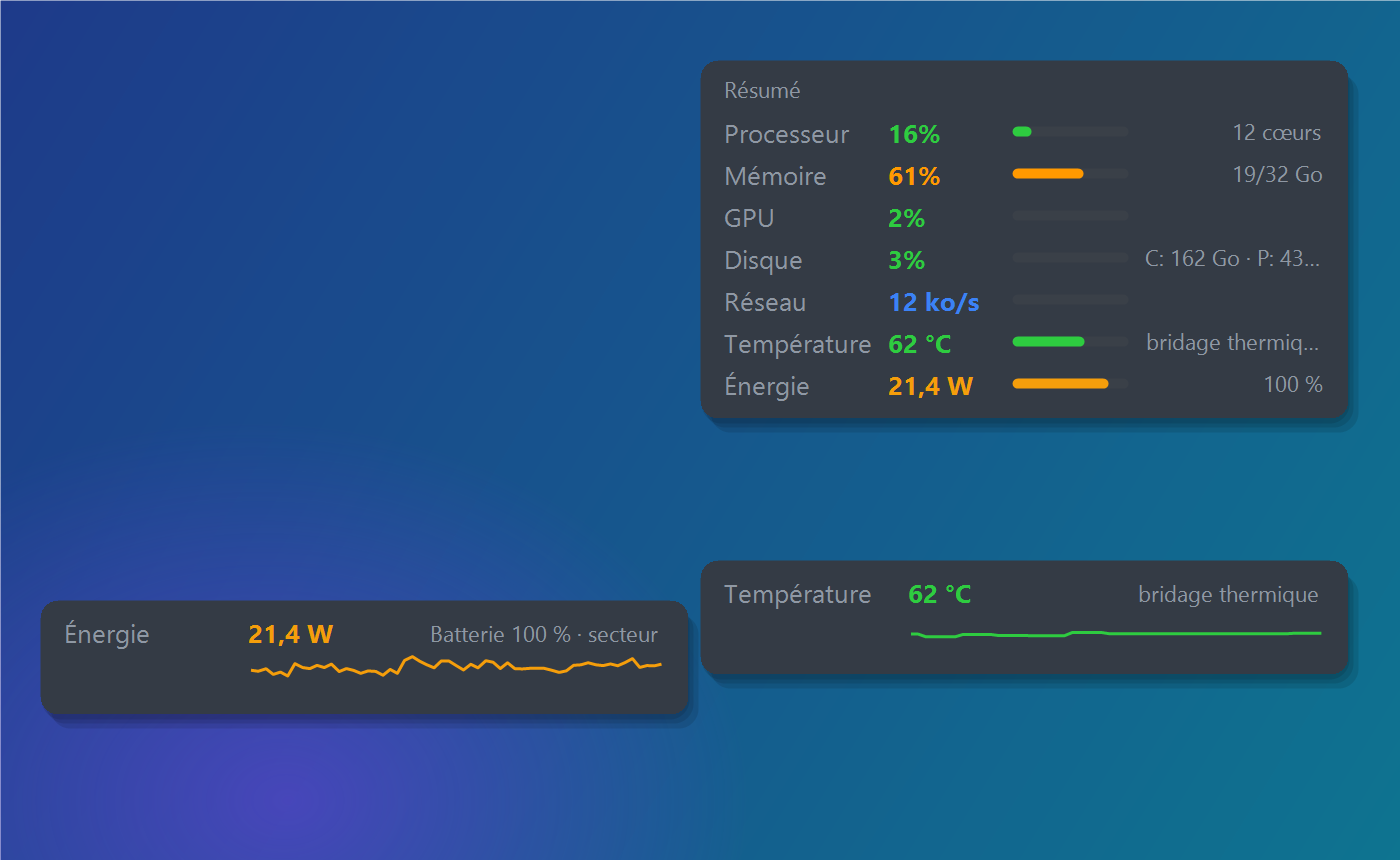
Drag a card out of the panel to drop it on the desktop: it becomes a widget, always up to date. Right-click a widget to keep it on top or close it.
4. The menu
A right click on the icon opens the menu:
- Open the panel, Devices…, PC health…, System…, Software…
- Analyze the PC ▸: eight diagnostics (see below)
- Widgets ▸: add or close widgets
- Settings…
- Open Task Manager, Manage processes ▸
- the installed version, About, Check for updates…, User guide (this page) and Quit
5. Settings
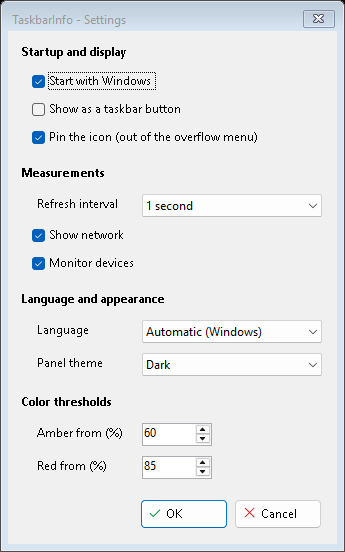
- Start with Windows, Show as a taskbar button, Pin the icon (out of the "^" menu).
- Refresh interval (1, 2 or 5 seconds), Show network, Monitor devices.
- Language (6 languages, or the Windows one) and Panel theme (dark, light, or the Windows one).
- Color thresholds: from which percentage the bars turn orange, then red.
6. Camera, microphone and speakers
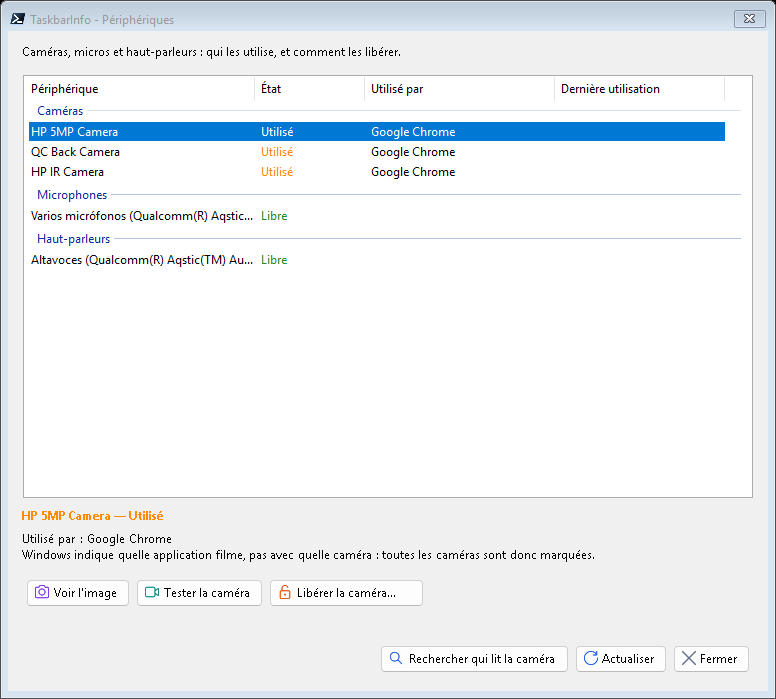
Devices… answers "the camera is already in use": which application is holding the camera or the microphone right now. The buttons offered depend on the cause: Free the camera (stops only the capture, not the whole browser), Test the camera, Find who is reading the camera, access denied in privacy settings, a failing driver, and Reset the camera as a last resort (Windows asks for administrator permission).
7. PC health, System and Software
- PC health: battery (wear, cycles), temperature and throttling, disk health, antivirus and its signatures, pending restart.
- System: the PC's specifications (processor, memory, graphics card, screens, storage, serial number) — handy for support over the phone.
- Software: Windows and .NET versions, every installed application with its size and those running. Check for updates queries Windows Update, the Windows app manager and Microsoft; Update…, Update all… and Uninstall… act on the selected row.
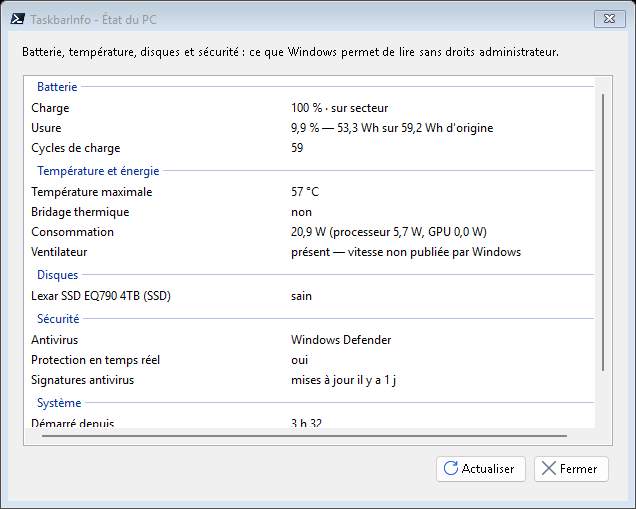
In all these windows, columns widen by dragging their header, the window can be enlarged, and Copy puts the whole report on the clipboard so you can send it to someone.
8. Analyze the PC
The Analyze the PC submenu brings together eight diagnostics. Information is read when the window opens (nothing runs in the background). Orange: keep an eye on it; red: needs fixing. Any action that changes Windows always asks for confirmation, then for administrator permission.
Printers and devices
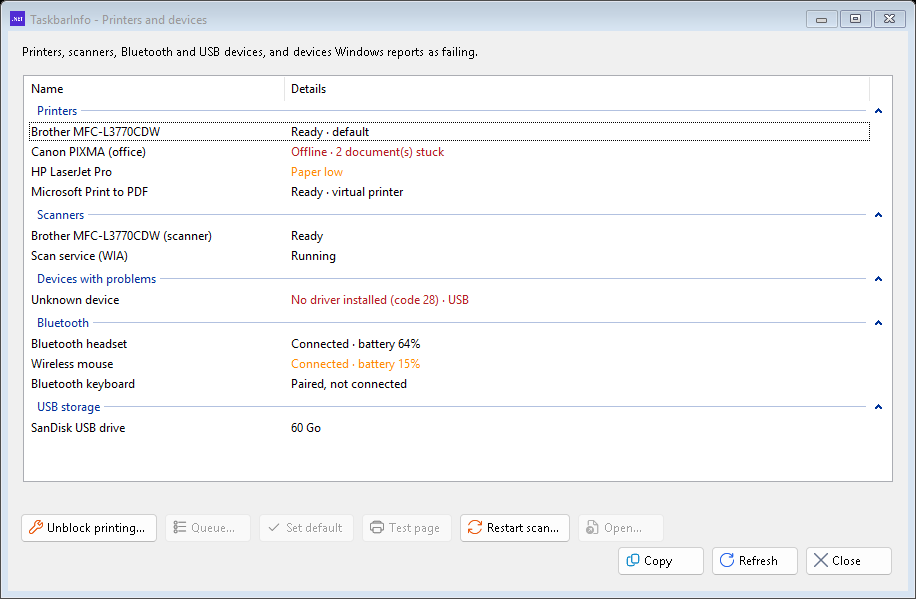
- Status of each printer: ready, offline, paper, ink, jam, documents waiting or stuck.
- Unblock printing…: when nothing comes out any more, empties the queue and restarts the Windows print service (waiting documents are lost — print them again).
- Queue…, Set default, Test page for the selected printer.
- Scanners, and Restart scan… when software no longer sees the scanner.
- Devices with problems (exclamation mark in Device Manager), with the cause.
- Bluetooth devices, connected or not, with their battery level when they report it.
Windows startup
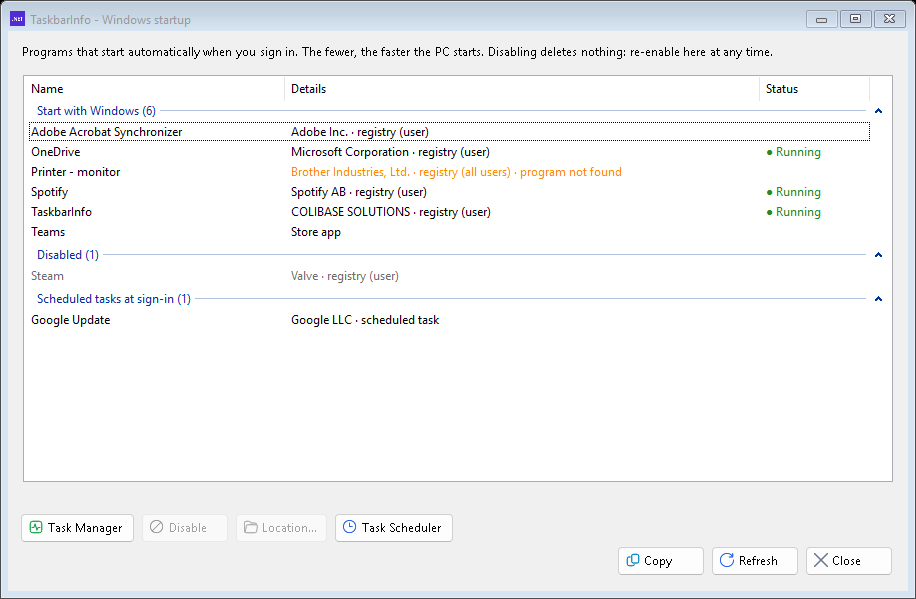
Everything that launches when you sign in. The fewer there are, the faster the PC starts. Disable deletes nothing: the program stays installed and can be re-enabled here. "Program not found" flags a leftover of uninstalled software, which can safely be disabled.
Reliability
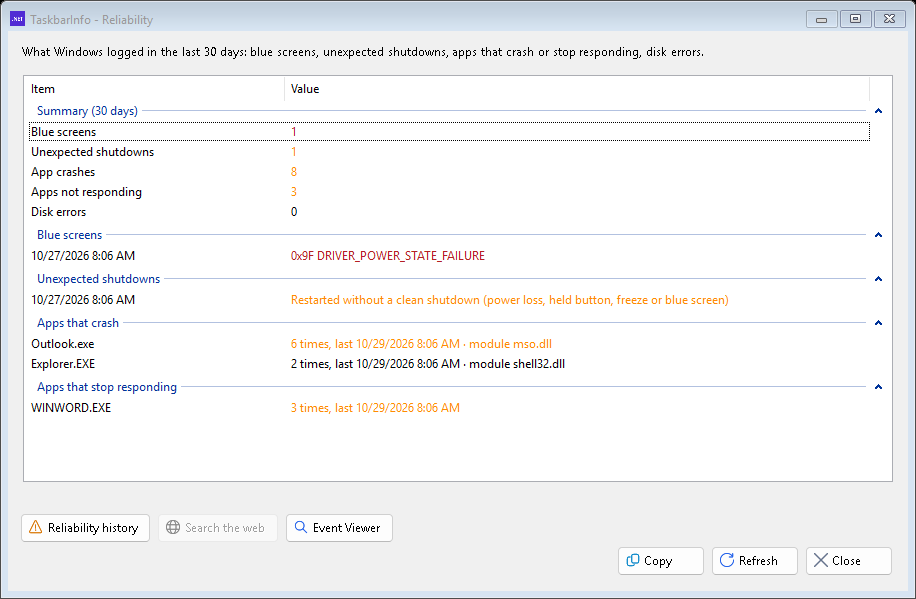
What Windows recorded over the last 30 days: blue screens (with their code), unexpected shutdowns, applications that crash or stop responding, disk errors. The module shown is often the real culprit (a driver, an add-in). Search the web searches for the selected row.
Network
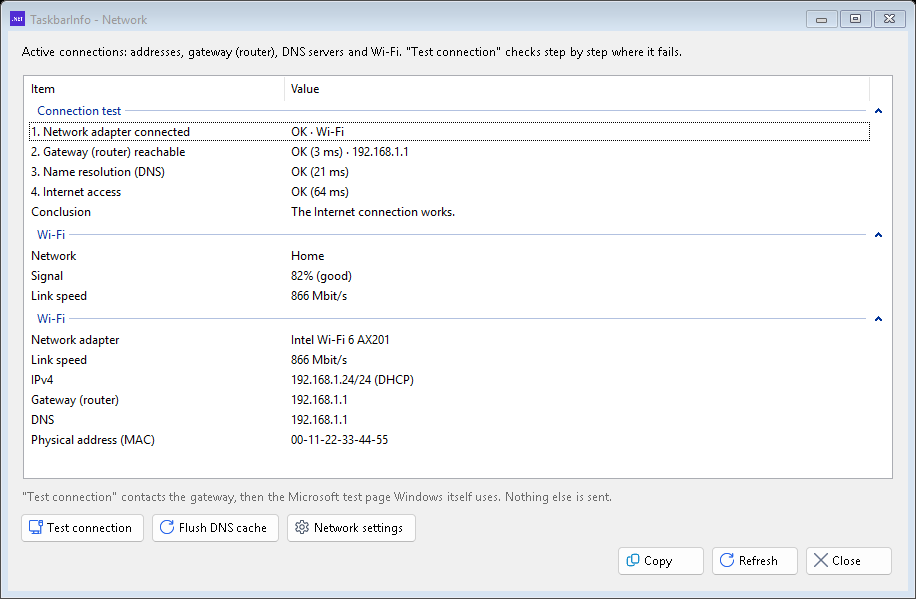
The PC's address, router, DNS servers, Wi-Fi name and signal quality. Test connection checks, in order, the network adapter, the router, name resolution and Internet access, then tells you where it fails and what to do. Flush DNS cache fixes sites that are "not found" after changing routers.
Services
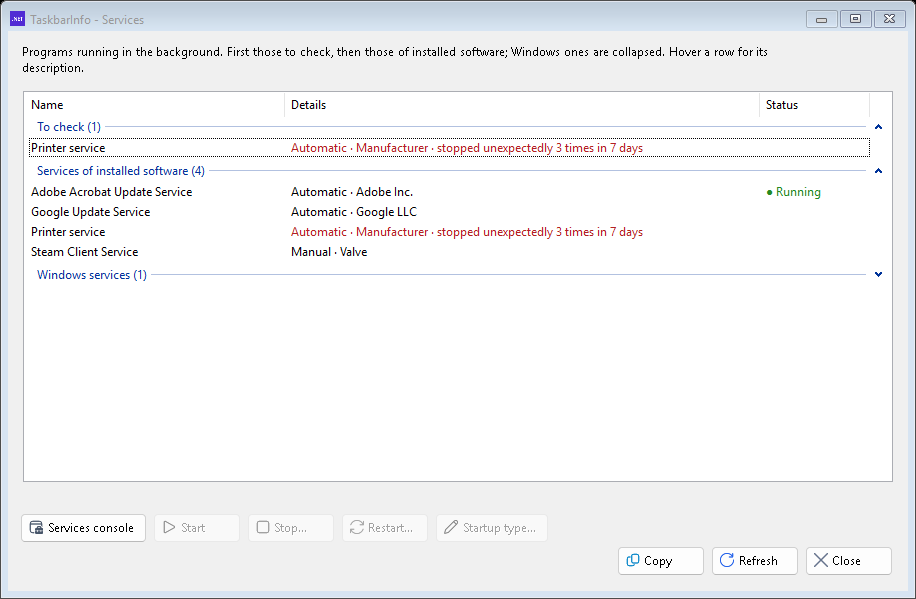
Programs that run in the background. At the top, those to check (stopped abruptly or in error), then those of installed software; Windows services are collapsed. Hover over a row for its description. Start, Stop…, Restart… and Startup type… (Automatic, Manual, Disabled) — services essential to Windows cannot be stopped.
Disk space
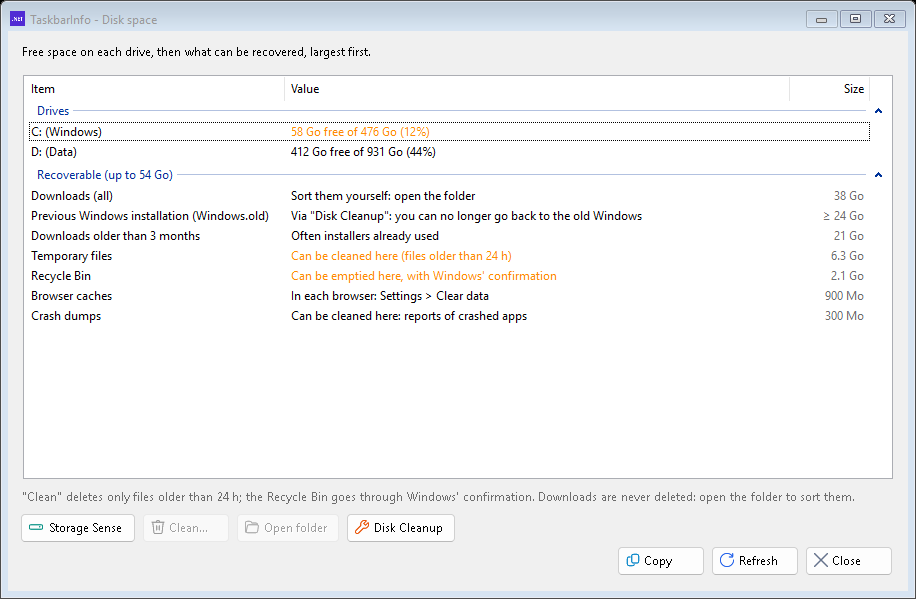
The free space on each disk, then what can be recovered, from largest to smallest. Clean… deletes only temporary files and crash reports older than 24 hours; the Recycle Bin is emptied with Windows' confirmation. Downloads are never deleted: use Open folder to sort them yourself. Disk Cleanup handles Windows.old and the Windows Update cache.
Security
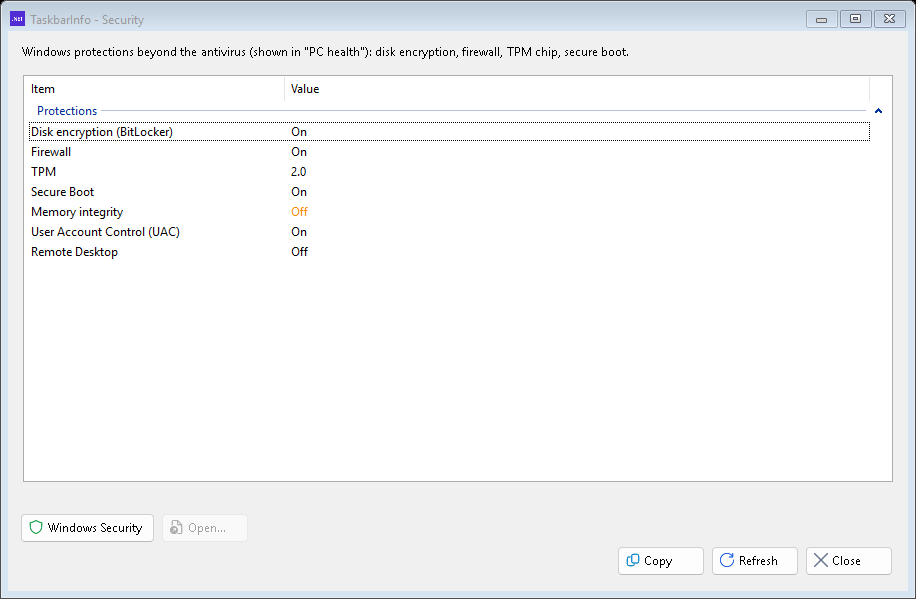
Beyond the antivirus: disk encryption (BitLocker — without it, a stolen PC can be read), firewall, TPM chip, Secure Boot, memory integrity, User Account Control, Remote Desktop. Open… takes you to the right Windows setting.
Users
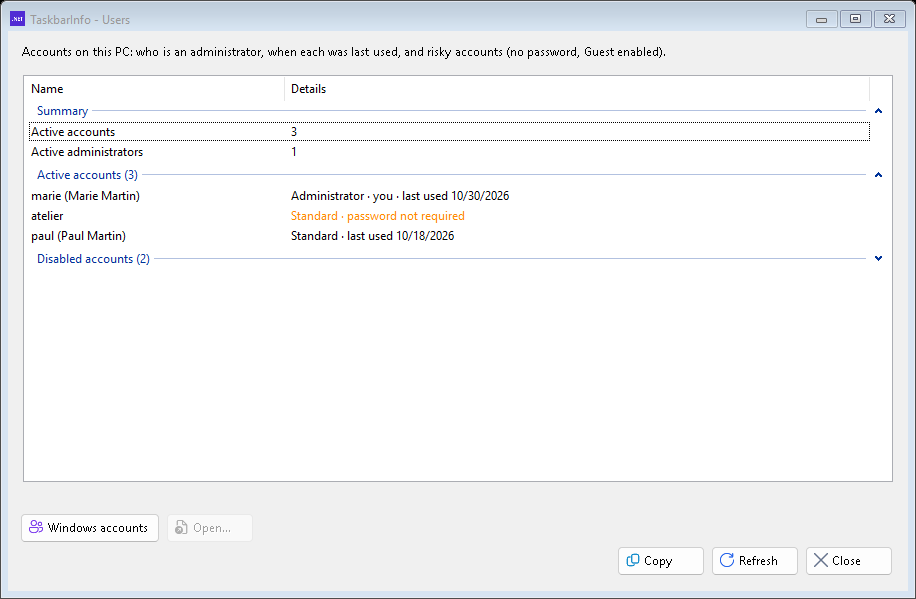
The PC's accounts: who is an administrator, when each was last used, and risky accounts — no password required, Guest or built-in Administrator account enabled.
9. Stop applications in one click
Some applications stay in memory after you close them (messaging, sync…). Manage processes ▸ Manage lists… creates named lists ("Work", "Games"…); Stop ▸ [list] closes them all, after a confirmation showing the memory freed. Windows programs are protected and never appear.
10. TaskbarInfo updates
TaskbarInfo checks for new versions by itself (at startup, then every 6 hours) and offers them to you. After "Yes", a window shows the download and installation, then TaskbarInfo restarts and confirms the installed version. Details of each version are on the version history page.
11. Frequently asked questions
The camera is "already in use" or black in a video call
Devices…: the culprit application is shown. Otherwise Test the camera, then Reset the camera. If the camera service keeps crashing, update the driver (button offered).
Nothing prints any more
Analyze the PC ▸ Printers and devices: printer offline? document stuck? Then Unblock printing….
The PC takes a long time to start
Analyze the PC ▸ Windows startup: disable what you don't need as soon as you sign in.
The disk is full
Analyze the PC ▸ Disk space: start with the largest rows; old downloads are often installers you have already used.
The Internet no longer works
Analyze the PC ▸ Network ▸ Test connection: the conclusion tells you whether the problem comes from the PC, the router or the provider.
Why does Windows ask for administrator permission?
TaskbarInfo never runs as administrator. Only repairs that change Windows (unblocking printing, resetting the camera, changing a service…) ask for it, once, after your confirmation.
Is my data sent anywhere?
No. Everything is read on the PC. TaskbarInfo only contacts the Internet for its own updates and, when you click on them, to check software updates or test the connection.